Timelines in Revenant
Every book runs on a clock, and nobody writes it down. How many days did the ride to the capital take? Was she sixteen at the ball, or seventeen? Did the murder happen before the funeral, or during it? You know, mostly. Until you move a chapter.
Revenant is the room for time. It lays your book out on a board of timelines, one lane each, all on the same calendar, so you can see what was happening where while your characters were busy somewhere else. Then it can check a chapter’s timing against all of them.
The room is free. The two things that read your book, Find timelines and Find timing issues, are paid in credits, like a chat message.
If Revenant isn’t on your project home, it’s just switched off: open the Apps menu at the top of the launcher and tick it back on.
Find the timelines in your book
The first time you open Revenant, the board is empty and asks When does it all happen? Click Find the timelines in your book.
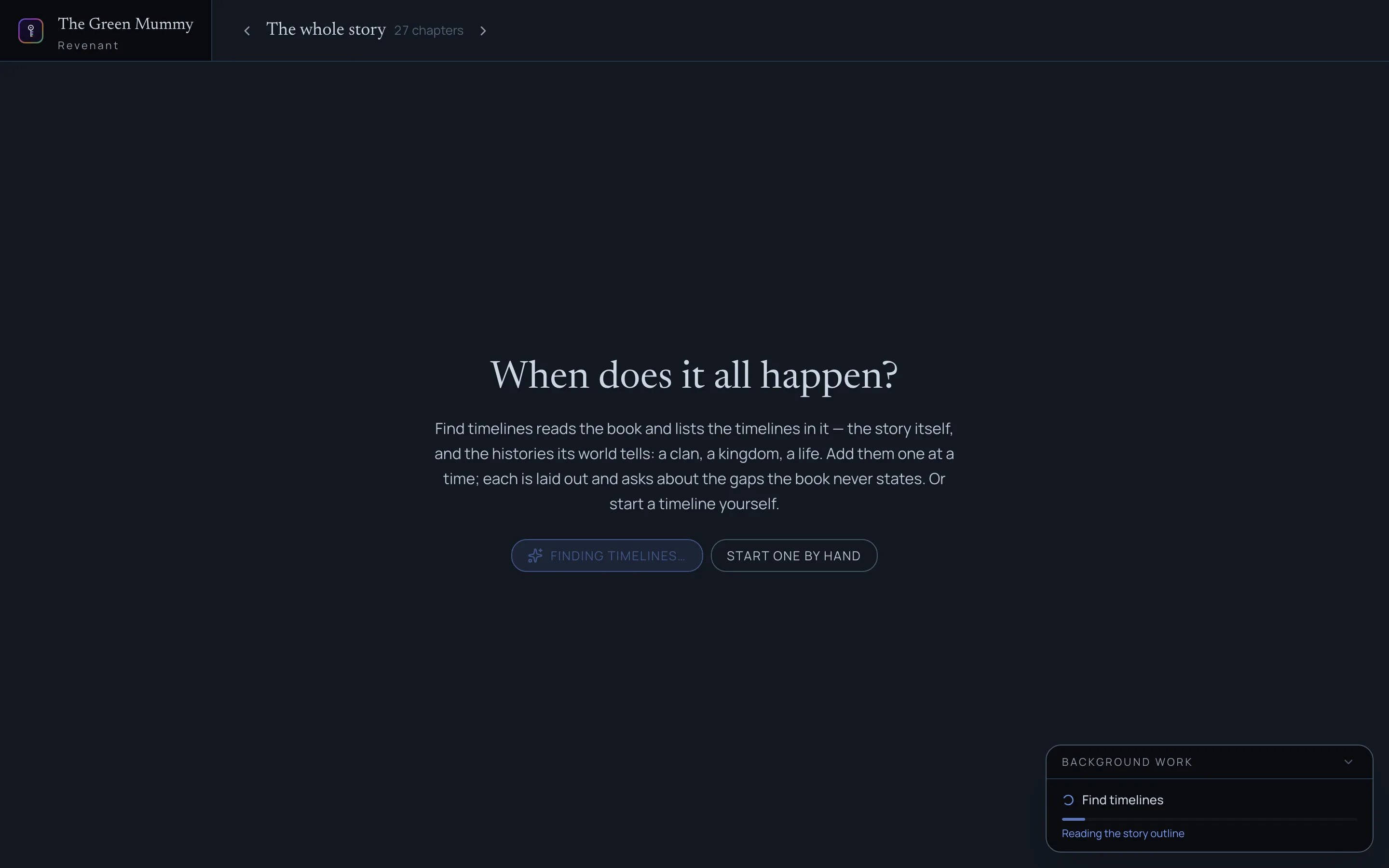
Ghostkey reads the book’s outline and comes back with a list. It sorts what it found into five folders:
- Plot: the story’s own clock, and the threads that run beside it.
- Action sequence: a battle, a heist, a chase, read beat by beat.
- Mysteries: what really happened offstage, in the order it happened, not the order it’s revealed.
- Characters: a life beyond the scenes we watch, from every mention.
- History: the past of a clan, a kingdom, a war.
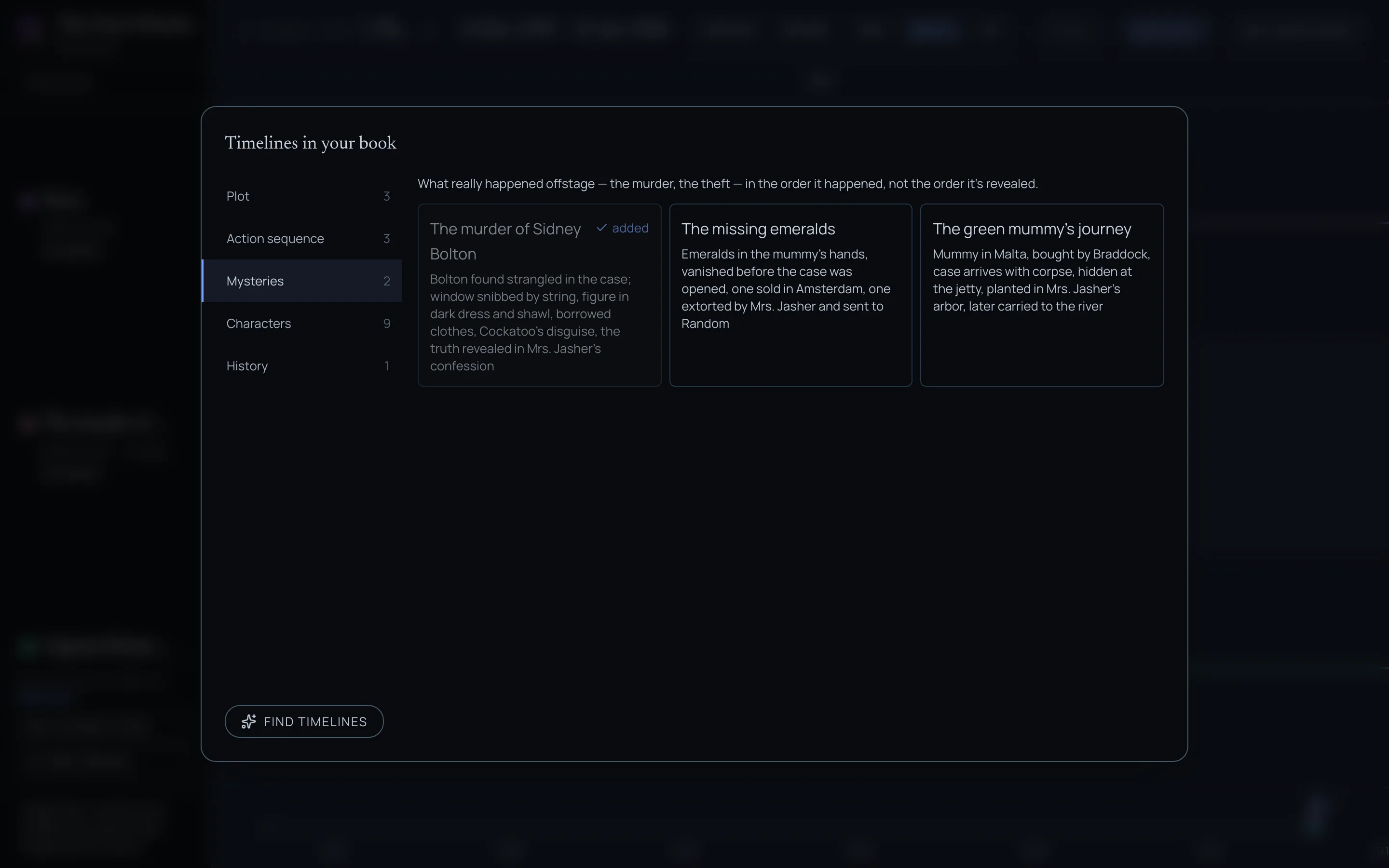
Start with Story. It’s the one the others are dated from, so laying it out first means the rest land in the right place.
Click a card to add that timeline. Timelines go one at a time: each is a read of its own, so you only pay for the ones you want. When the first one is done, open the list again (the button under your lanes says how many are left to add) and pick the next.
The list is kept. Opening it again doesn’t read the book again, and it doesn’t cost anything. If you’ve changed the book a lot since, Find timelines at the bottom of the list reads it fresh.
When does the story start?
Before the very first timeline, Revenant asks when your story begins: 1789, May 1789, year 312. Leave it empty if the book doesn’t say, and everything counts from year 1. Either way, every other timeline is dated from that start.
Read the board
Each timeline is a lane, and every lane shares one ruler, so a point in one lane sits right above whatever was happening in the others at the same moment.
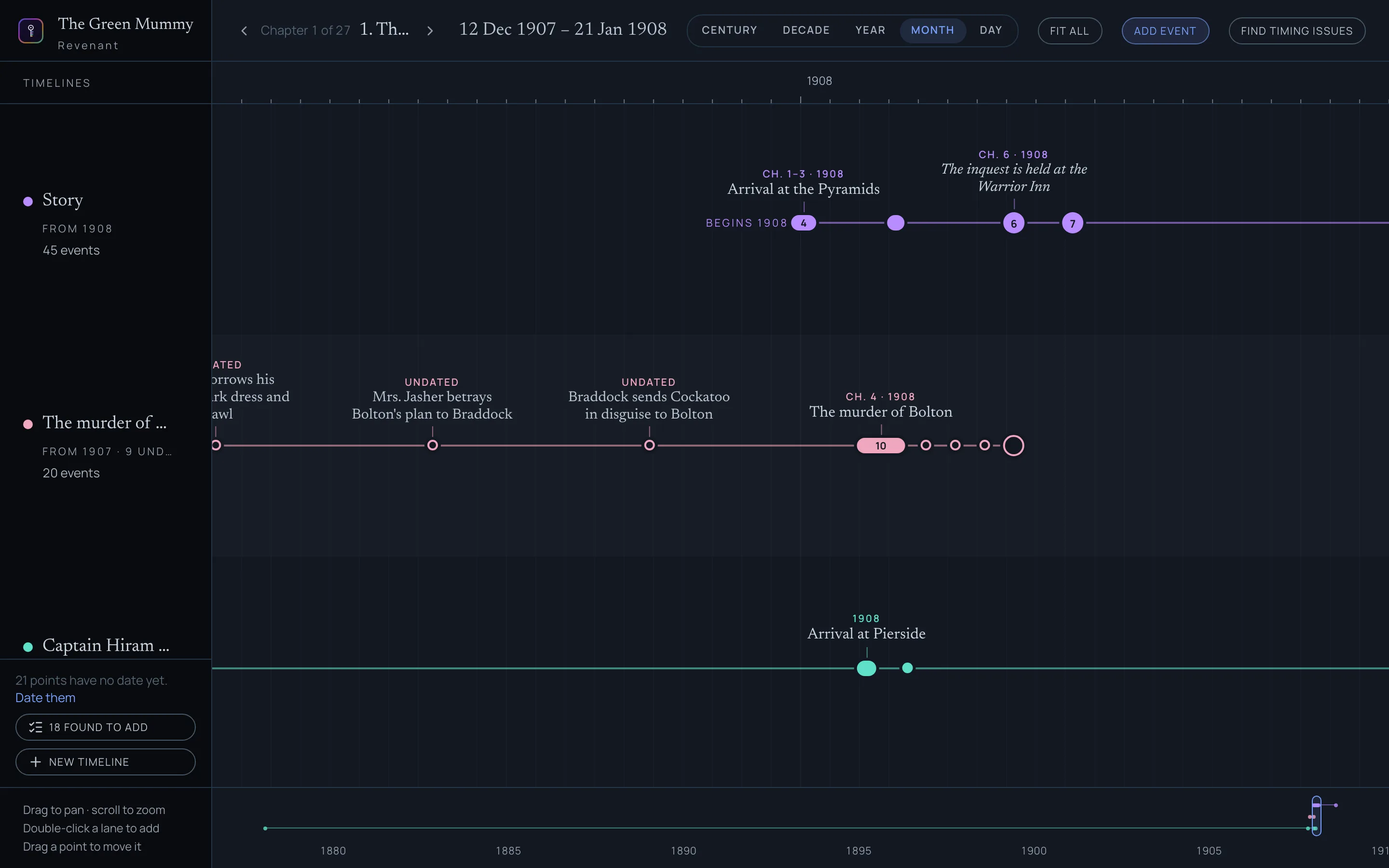
- Scroll to zoom, and drag to pan. The buttons at the top jump between Century, Decade, Year, Month and Day; Fit all shows everything.
- The strip along the bottom is the whole board in miniature. Drag the window in it to move around.
- Each story event carries the chapter that tells it. The arrows beside the title step through the book a chapter at a time (or use ← and →), and the board follows.
- Events close together fold into one block with a short header. Click it to zoom in until they come apart.
- A hollow point has no date yet.
Date the gaps
Books skip time without saying how much. “That winter.” “Years later.” When Find timelines can’t work out a gap from the book, it asks you, in a column on the right: How much time passed between this and that?
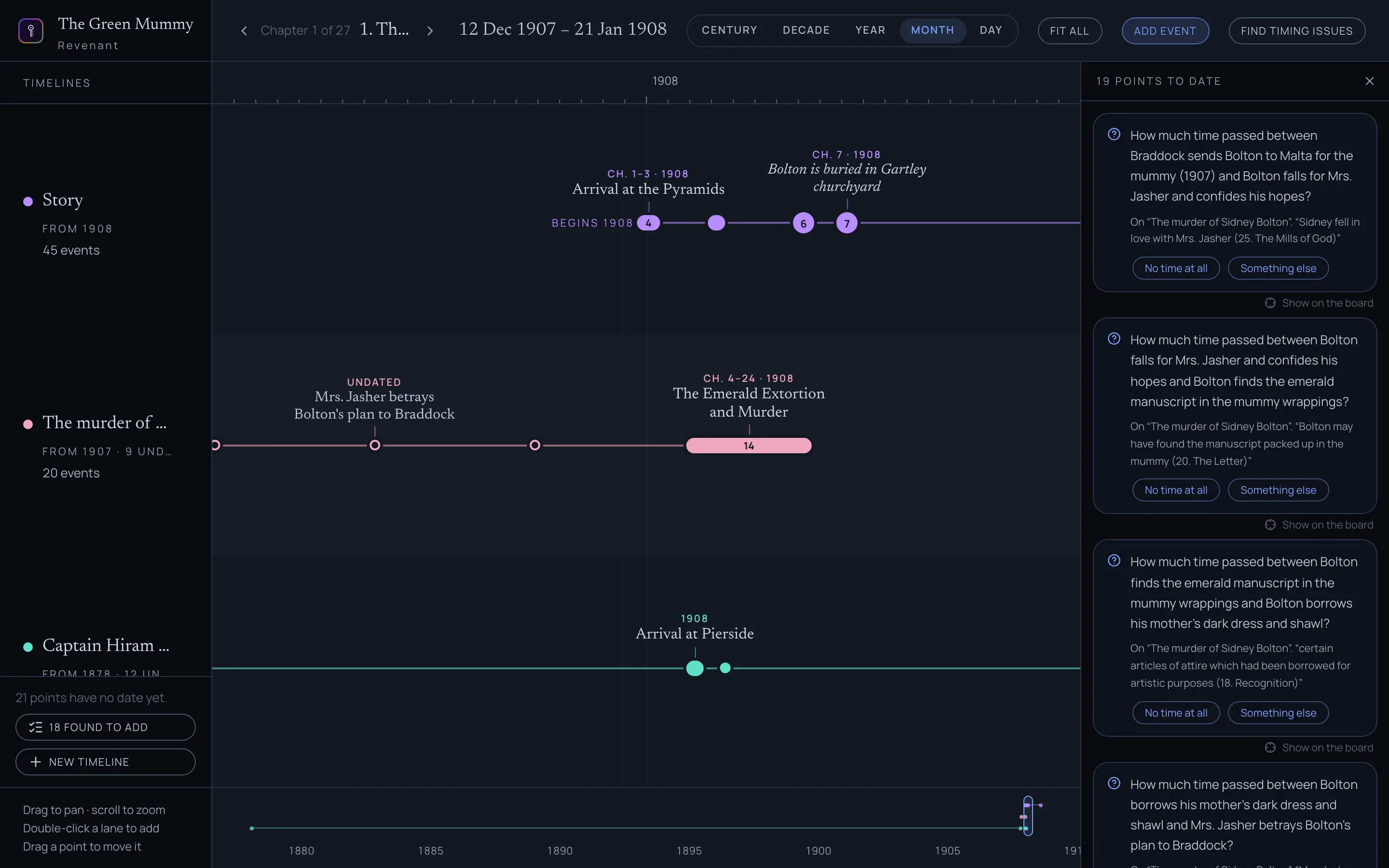
Each question comes with a guess drawn from the story, and No time at all for a scene that runs straight on. Something else takes your own answer: three weeks, about two years. Answer one and the point lands on the board, along with everything that was counted from it.
You don’t have to answer them all. Hide the column with the ✕, and bring it back with Date them under your lanes.
Make it yours
Click any point to open it.
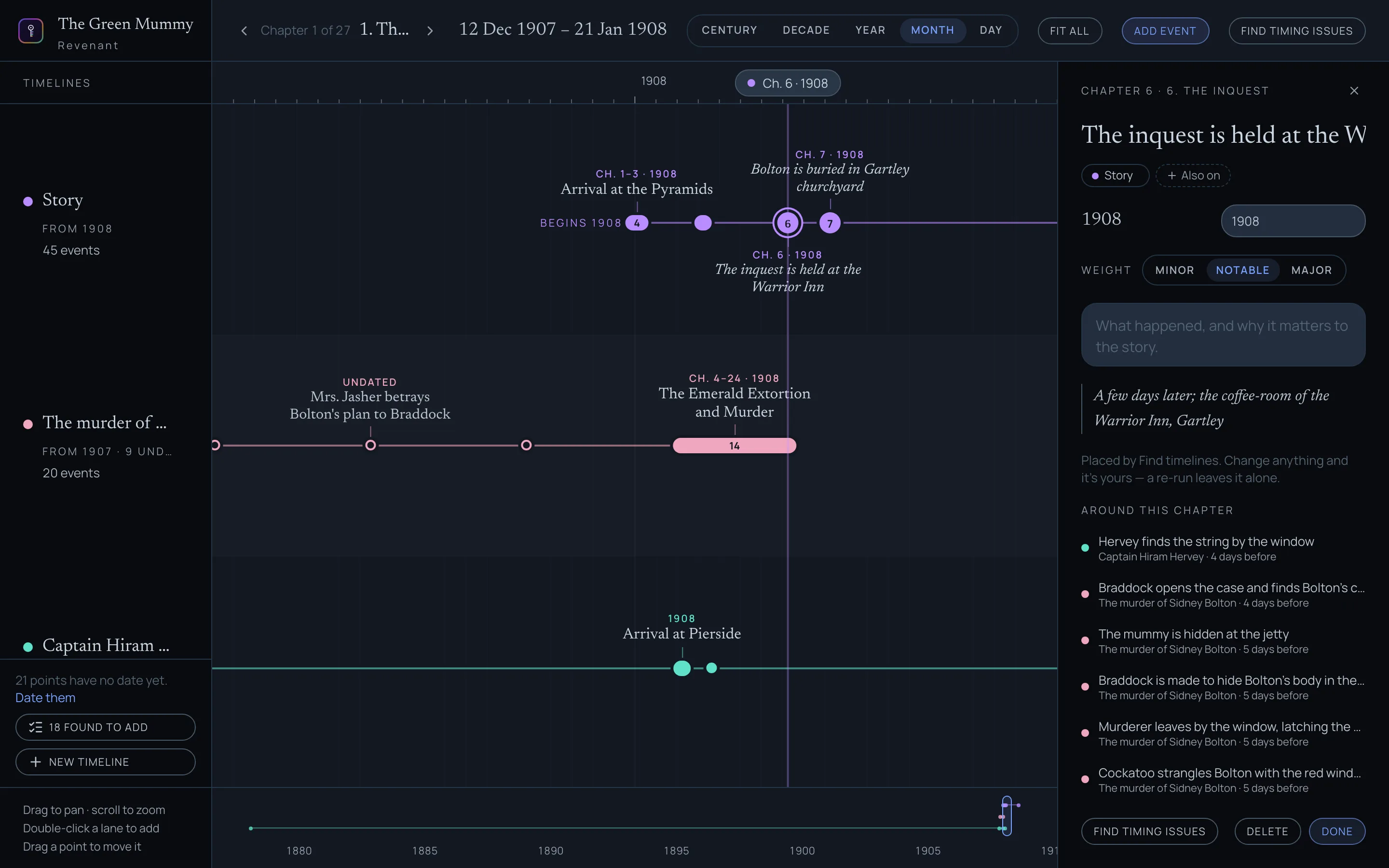
- Type a date (14 May 1789, year 11) or drag the point along its lane.
- Weight sets how much the point stands out: Minor, Notable or Major.
- Also on puts the same event on another timeline, when it belongs to both.
- Around this chapter lists what the other timelines are doing at the same time.
When Find timelines worked a time out from the world rather than the page, like sunset in Paris in January, or how long a ride takes, the point says so under its date.
Anything you change is yours. Find timelines never touches a point you’ve edited.
To add your own, double-click a lane, or use Add event at the top. Each lane’s ⋯ menu adds an era (a stretch like The Regency or Part two), renames the timeline, or deletes it. New timeline starts an empty lane.
Check a chapter’s timing
Open a point that belongs to a chapter and click Find timing issues. A chat opens from the right, reads that chapter against every timeline around it, and lists what doesn’t add up: a time of death given three different ways, a visit no witness remembers, a night too crowded for the hours it has.
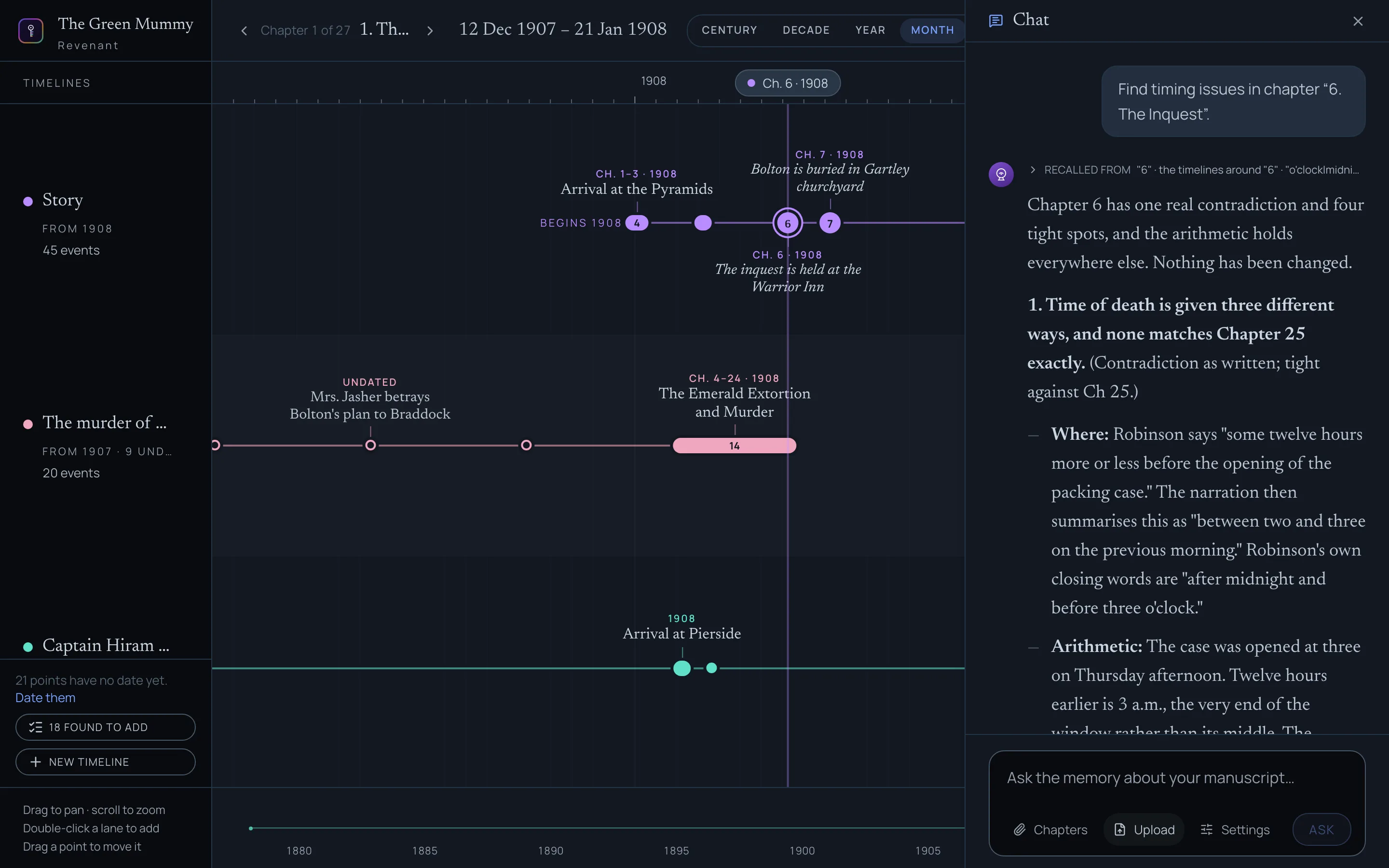
It says how sure it is about each one, and it changes nothing. Ask a follow-up in the same chat, or keep what it found with Save as note.
From a character’s sheet
In Veil, a character’s or a place’s sheet has a Timeline section. Add timeline finds what happened to them, and when, from every passage that names them, and puts it on Revenant’s board.