The chapter plan
The chapter plan turns your plot into the chapters you’ll write. It happens in PhantomMemory, the chat. Click Break into chapters under your outline or Generate chapters on your cards, or ask for it in a plotting conversation. The chapters appear beside the chat as they’re written.
First, the gaps
The first phase is about filling the gaps. No matter how detailed your outline, there will be spots that are unclear: how a character gets from one place to the next, what a stretch of the middle is for. Before it writes anything, the chat asks about them, a few questions at a time, each with a few options to pick from. Your answers are written back into your outline or your board, so the plan keeps them.
If you don’t know yet, say so. The chat can leave a detail open in a chapter’s note for you to decide when you write it.
The proposal
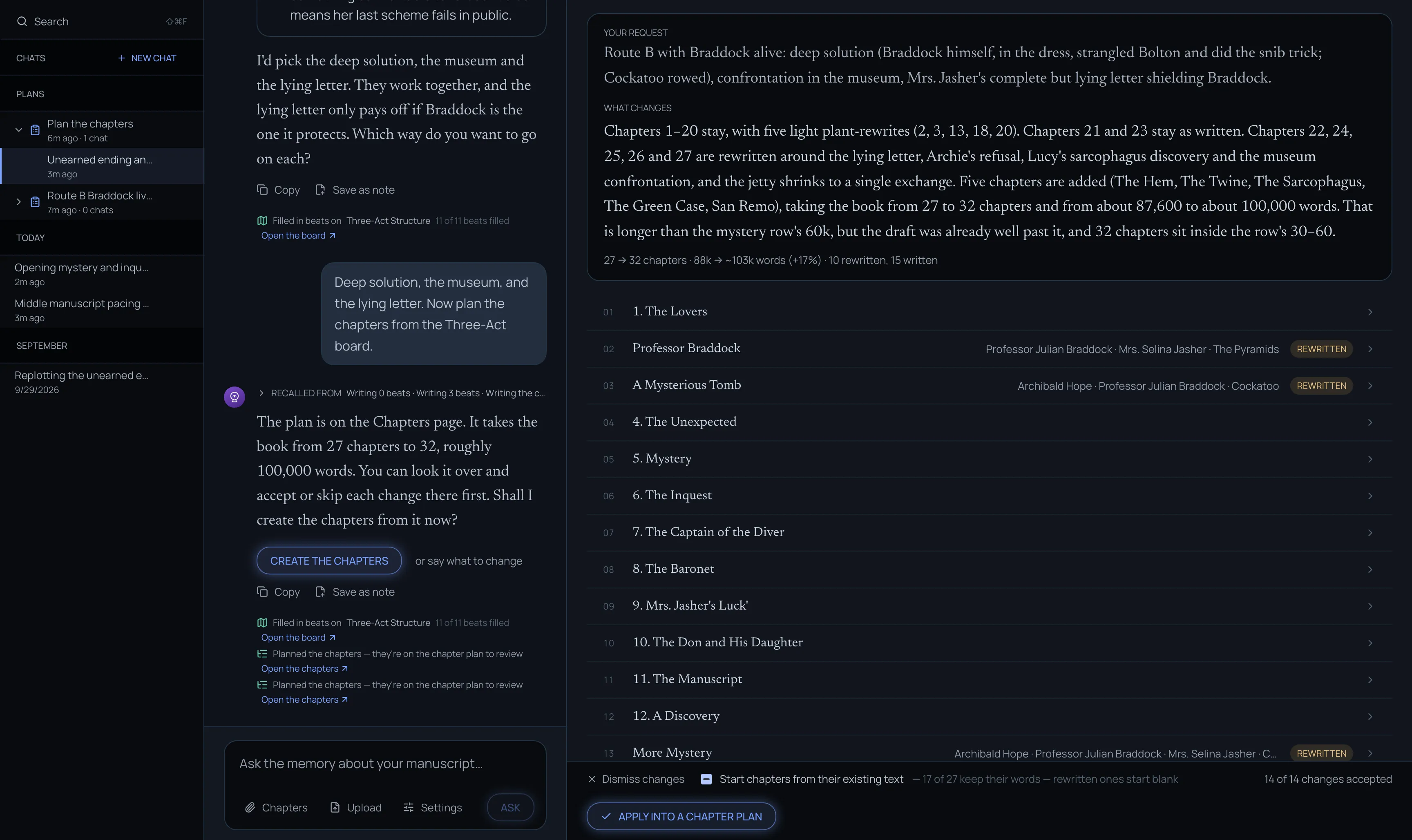
Once everything is clear, the chat proposes the chapters.
How many depends on how long it thinks the book will be:
- If the book already has a draft, it goes by that draft’s length and its chapters.
- If it’s a new book, it goes by the typical length for your genre.
It tells you which reading it took, for example “I’m reading this as a YA fantasy, about 90,000 words”. If that’s off, give it your target length. It estimates the number of chapters from it.
What each chapter gets
Every chapter gets a note about what happens in it, and a target length.
You can also tag characters on a chapter, under In this chapter. They then show in Apparition’s margin when you write that chapter, with their notes from your world bible a click away.
Chapters you’ve already written
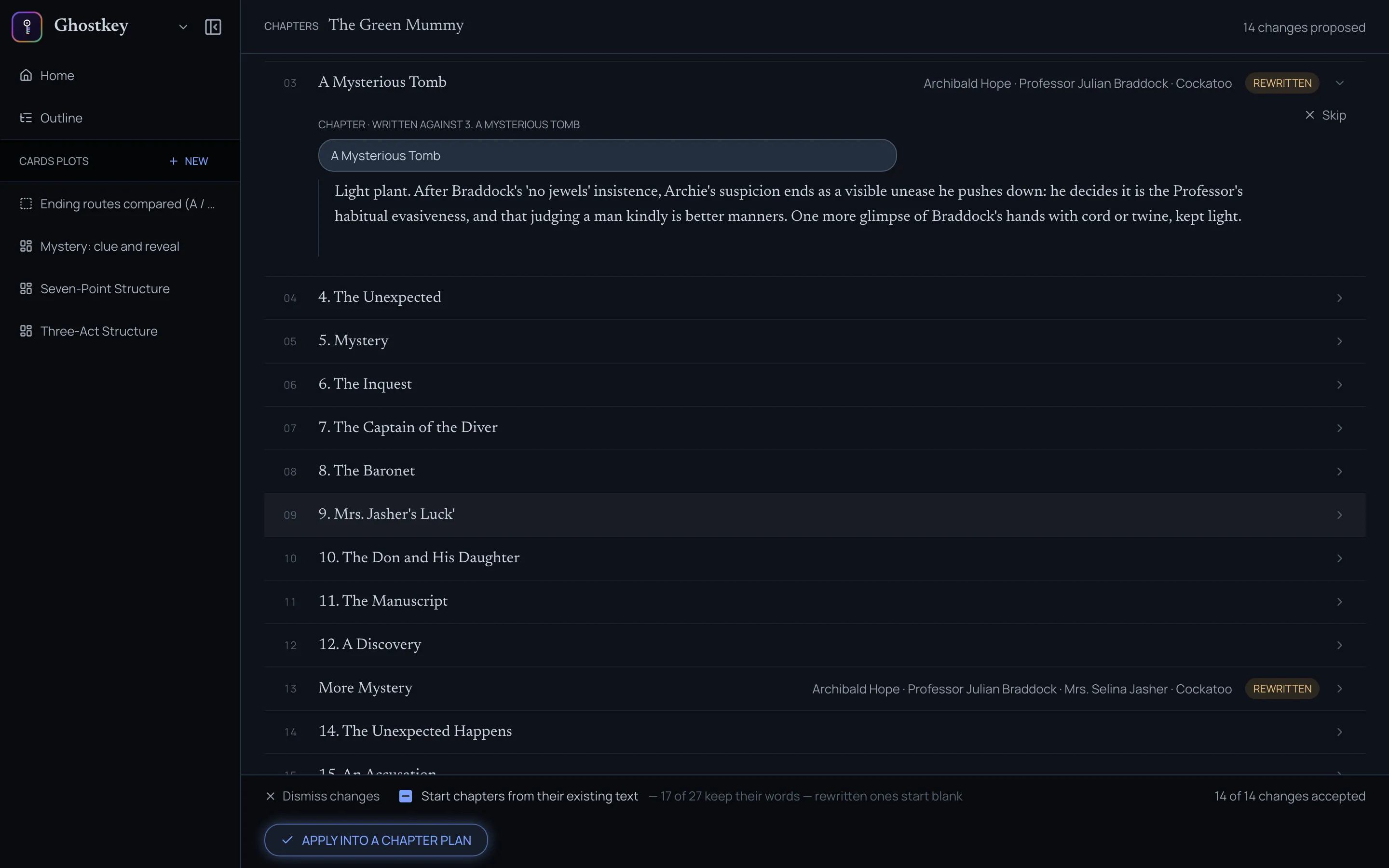
When you plan over a book that already has chapters, the plan reuses them where it can. It proposes changes to the book you have: each chapter it touches is marked new or rewritten, and the ones it doesn’t mention stay as they are. Open a chapter to read its note, and click Skip on any change you don’t want.
By default, the chat treats a substantial change as a complete rewrite: a rewritten chapter starts blank, with the old one linked beside it for reference. If you’d rather keep all the text and rework it yourself, check Start chapters from their existing text.
Creating the chapters
When the plan is right, the chat offers a Create the chapters button. You can also do it from the Chapters page: Apply into a chapter plan (when the plan changes an existing book), then Create chapters (the button counts them). Either way, your chapters go into a new draft, and Ghostkey switches you to it.
New chapters get a To write status, so you can find them easily.
Your previous version still exists as a draft, and you can open its chapters at any time. See Drafts.