Connecting your Astrohaus Freewrite
A Freewrite is built for getting words down with nothing else in the way. What comes after — putting those words into the right chapter — shouldn’t mean emailing yourself files and pasting them in by hand.
Ghostkey can pick up your Freewrite sessions and drop them into the chapter you have open, wherever your cursor is. You set it up once, and after that it takes two clicks.
This works in the Ghostkey desktop app and in the browser. The phone app doesn’t have it yet.
How it fits together
Your Freewrite doesn’t talk to Ghostkey directly. It goes through two services you may already use:
- The Freewrite syncs each draft to Postbox, Astrohaus’s own cloud.
- Postbox copies your drafts into your Dropbox, into a folder called
Apps/Postbox. - Ghostkey reads that folder.
So you need three things: your Freewrite set up with Postbox, a Dropbox account (the free one is enough), and a Ghostkey account.
Step 1: send your Postbox drafts to Dropbox
If Postbox already syncs to Dropbox for you, skip to step 2.
- Sign in to Postbox in your browser.
- Click your name or email in the top right corner, then Cloud Services.
- Under the Simple settings, choose Dropbox. Pick the file type your
drafts should sync as. Plain text and Word (
.docx) both work with Ghostkey. - A Dropbox window opens. Sign in if you need to, then allow Postbox by Astrohaus to access your Dropbox. If nothing opens, your browser may be blocking pop-ups for Postbox.
Your Dropbox now has an Apps/Postbox folder with three folders inside it,
A, B and C, one for each folder on your Freewrite. Astrohaus
covers this step in more detail in
Syncing Drafts to Dropbox.
Postbox’s advanced settings (part of Freewrite Plus) can send drafts to a
different folder. Ghostkey only looks in Apps/Postbox, so if you’ve moved
them somewhere else, Ghostkey won’t find them.
Step 2: connect Dropbox to Ghostkey
Open your book in Apparition and open any chapter. The strip above the page has three buttons for bringing in words from outside: dictate, scan a page, and the inbox. The inbox is the one for your Freewrite.

The first time you click the inbox, it asks you to connect Dropbox:
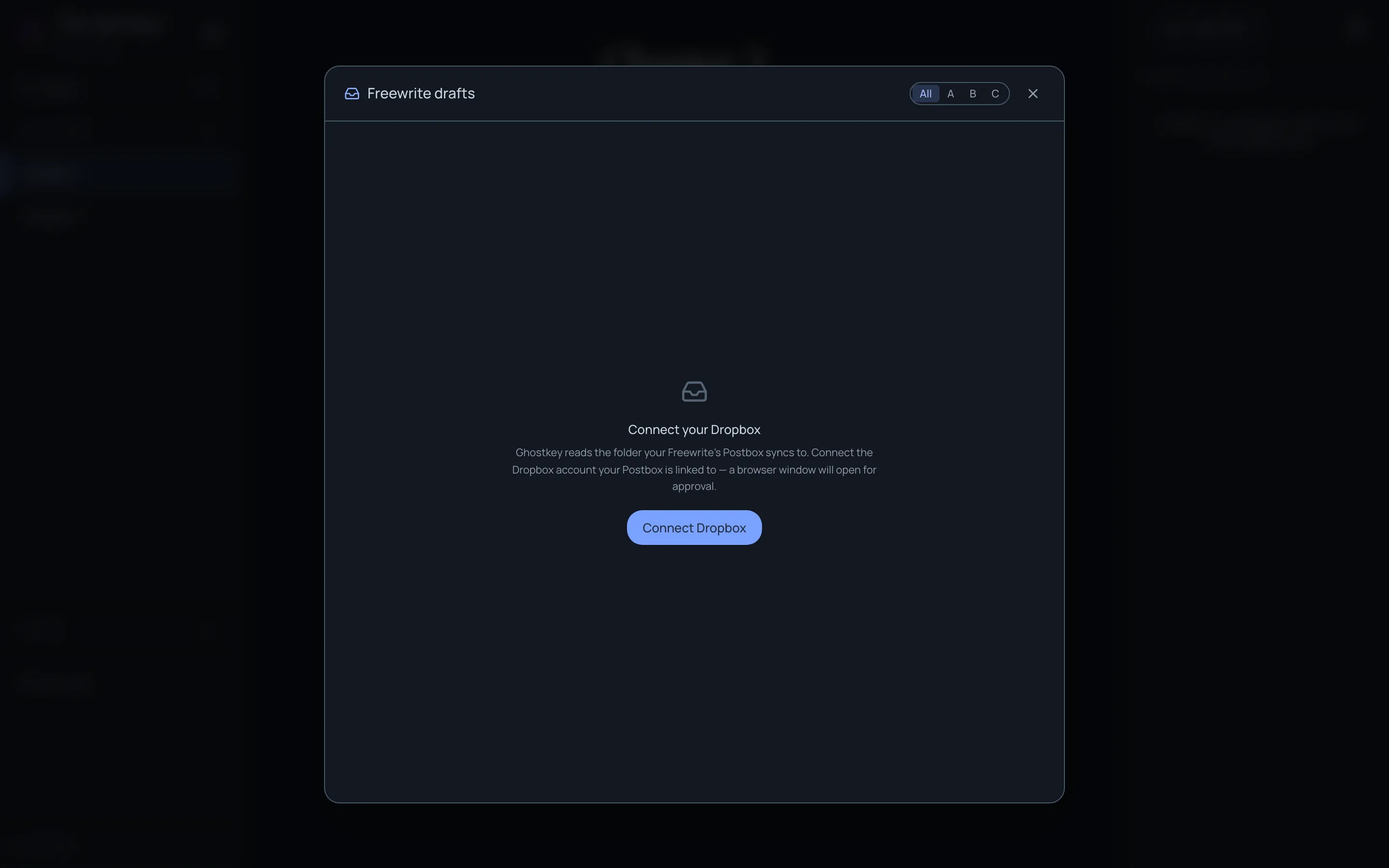
Click Connect Dropbox. A browser window opens on Dropbox’s own page. Sign in with the same Dropbox account your Postbox sends to, then approve Ghostkey.
Ghostkey asks Dropbox for permission to read files, and never to change or
delete them. It only ever looks in Apps/Postbox. Your Dropbox password stays
with Dropbox; Ghostkey never sees it.
When you’ve approved it, the browser says so:
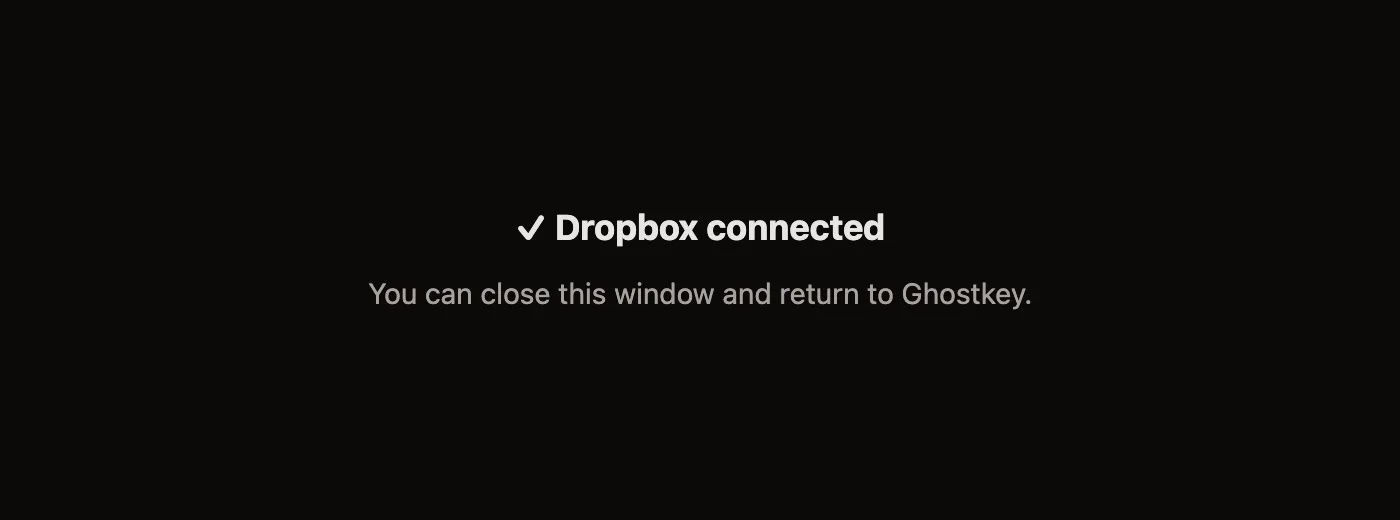
Close that window and go back to Ghostkey. It notices on its own after a moment, so there’s nothing to refresh. You only do this once for your account, not once per book or per device.
Step 3: bring a draft into your chapter
Put your cursor where the words should go. Then click the inbox.
Each time you open it, Ghostkey checks Dropbox for anything new and lists your pending drafts down the left side. Each one shows the Freewrite folder it came from, how long it is, and when it was last synced. Click a draft to read it.
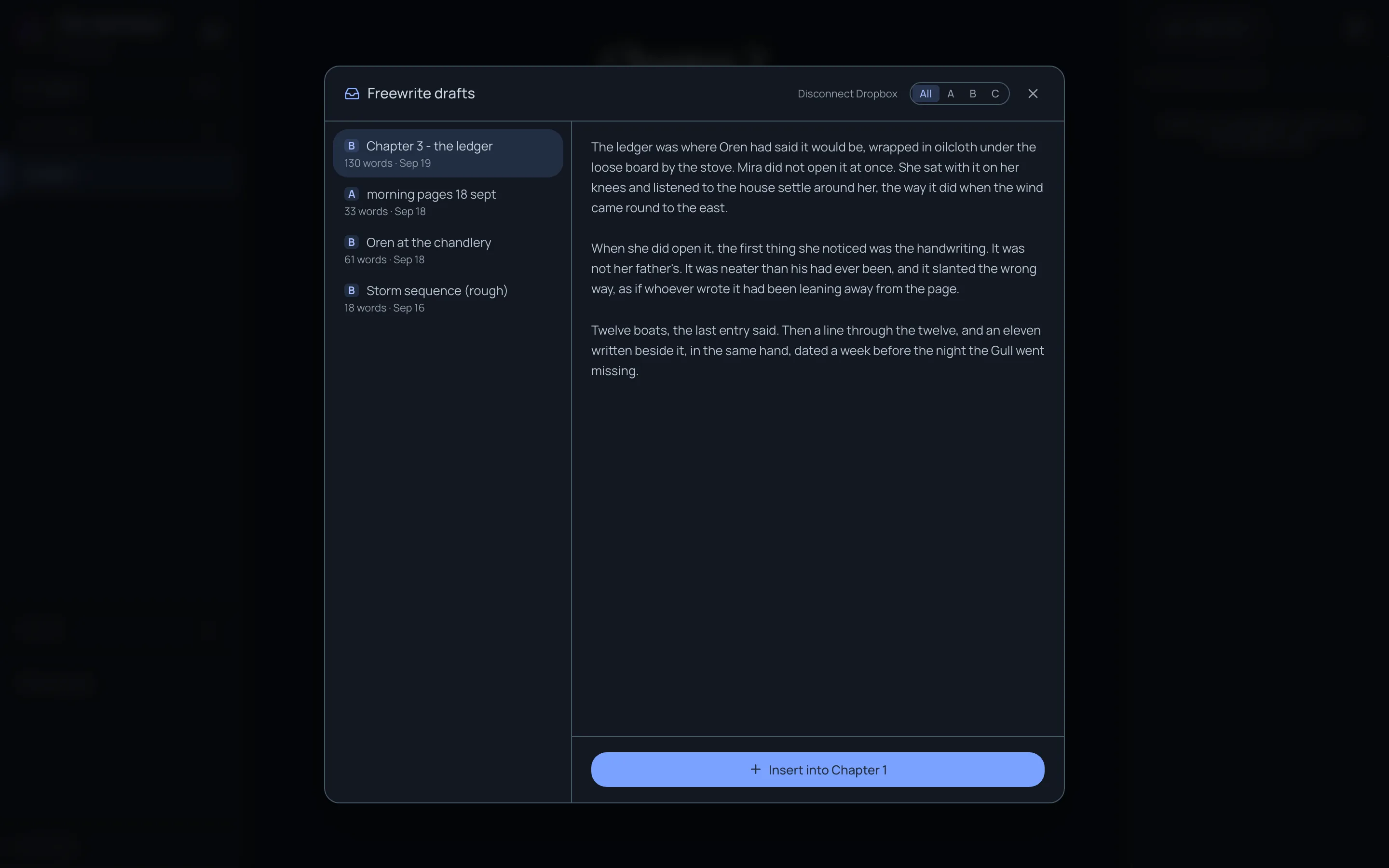
When it’s the one you want, click Insert into (the button names the chapter you have open). The draft goes in at your cursor, the dialog closes, and the draft leaves the pile.
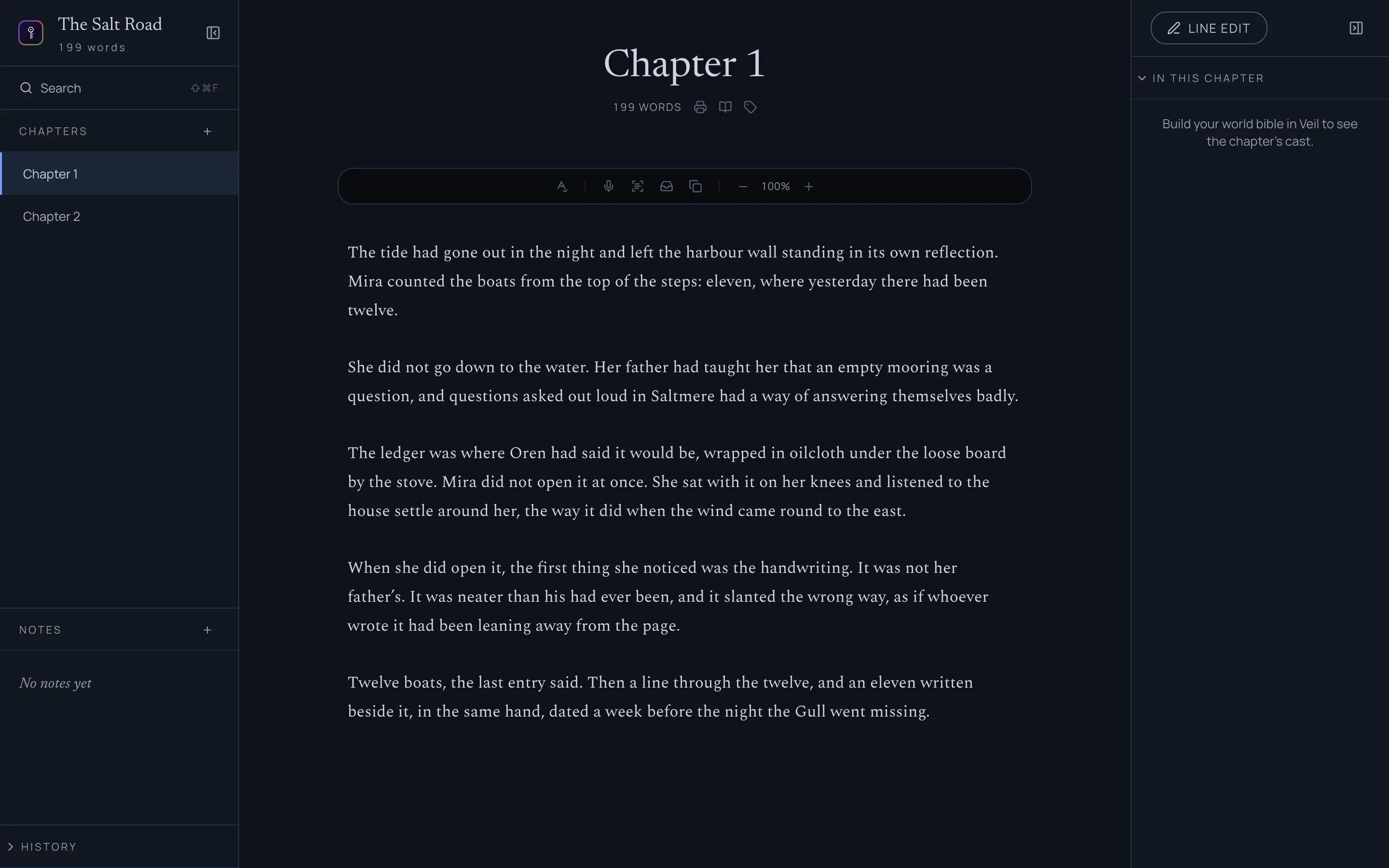
The text comes in as plain paragraphs. If Postbox syncs Word files, their formatting (bold, italics, headings) doesn’t come across, only the words.
Keep each book to its own folder
If you use the Freewrite’s A, B and C folders for different projects, you can tell each book which folder to use. The A / B / C buttons at the top of the dialog do this. Pick B, and this book only shows you drafts from folder B:
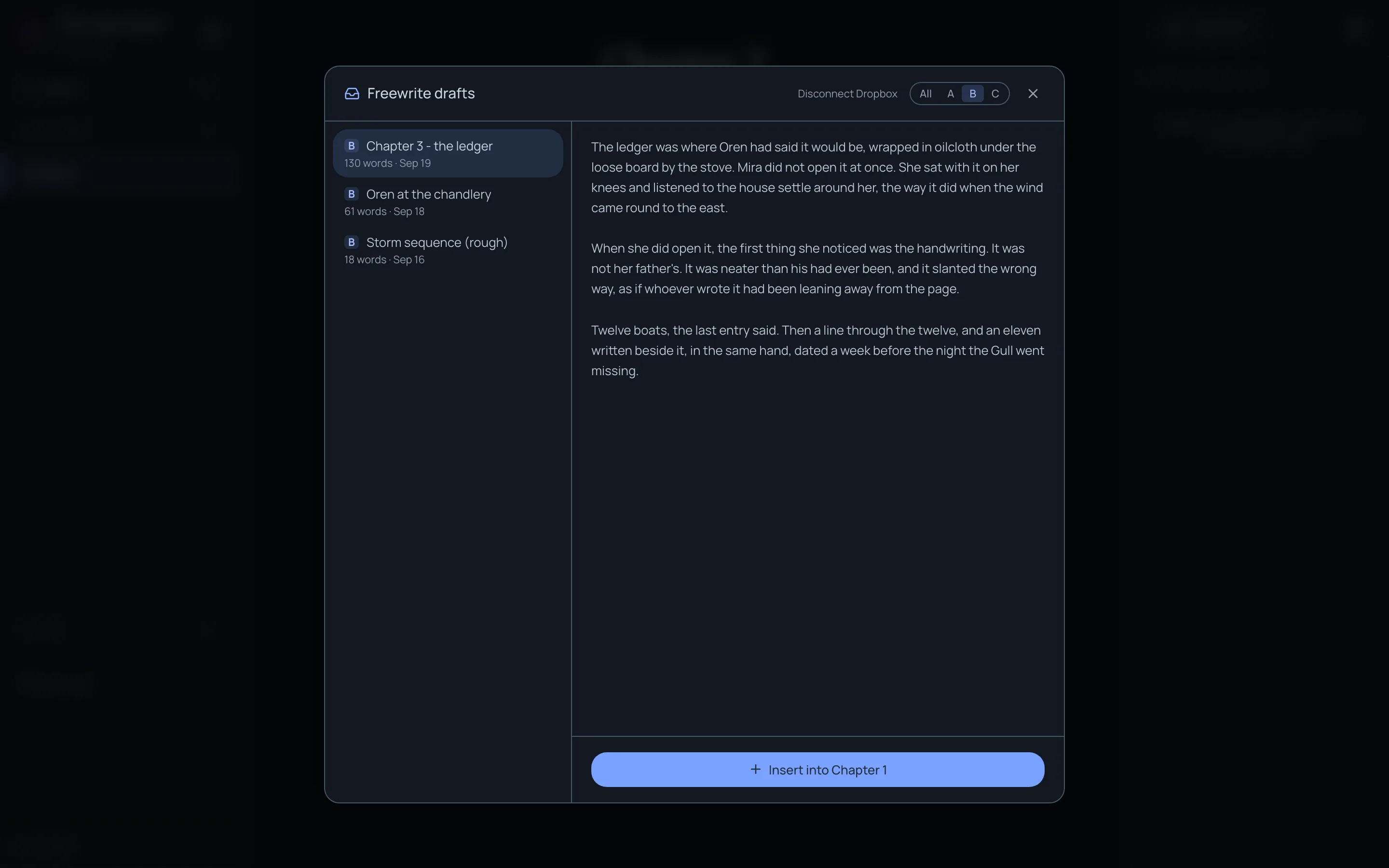
Ghostkey remembers the choice for that book, so next time it opens on folder B. All goes back to showing every folder. Two books can use the same letter.
What happens to a draft afterwards
-
Inserted drafts leave the pile. They stay on your Freewrite, in Postbox and in Dropbox. Ghostkey doesn’t touch any of those copies.
-
To get rid of one without inserting it, hover over it in the list and click the bin. That removes it from the pile, and only the pile.
-
Writing more into a draft brings it back. If you open an old draft on the Freewrite and keep typing, it comes back to the pile once it syncs. It comes back whole, the old words as well as the new ones. If you already inserted the first part, copy just the new ending rather than inserting the whole thing again, or you’ll have the beginning twice.
The simplest way to avoid this is to start a new draft on the Freewrite for each session.
If a draft doesn’t show up
Everything goes Freewrite → Postbox → Dropbox → Ghostkey, and Ghostkey only checks when you open the inbox. If the pile says No pending drafts:
- Has the Freewrite synced? It needs to be on Wi-Fi. Check that the draft shows up in Postbox.
- Has Postbox copied it to Dropbox? Look in
Apps/Postboxin your Dropbox. If it isn’t there, check the Cloud Services setting from step 1. - Are you on the right folder? If this book is set to A and the draft is in B, click All.
- Is it the same Dropbox account? Ghostkey reads the Dropbox you approved in step 2. If Postbox sends to another account, the drafts go somewhere Ghostkey can’t see.
Then close the inbox and open it again. That makes Ghostkey check again.
Disconnecting
To stop Ghostkey reading your Dropbox, open the inbox and click Disconnect Dropbox at the top of the dialog. Ghostkey gives up its access at Dropbox’s end too, so it doesn’t stay listed under your Dropbox’s connected apps. Drafts already in your pile stay there, and nothing is removed from your Dropbox. Click Connect Dropbox to connect again whenever you like.