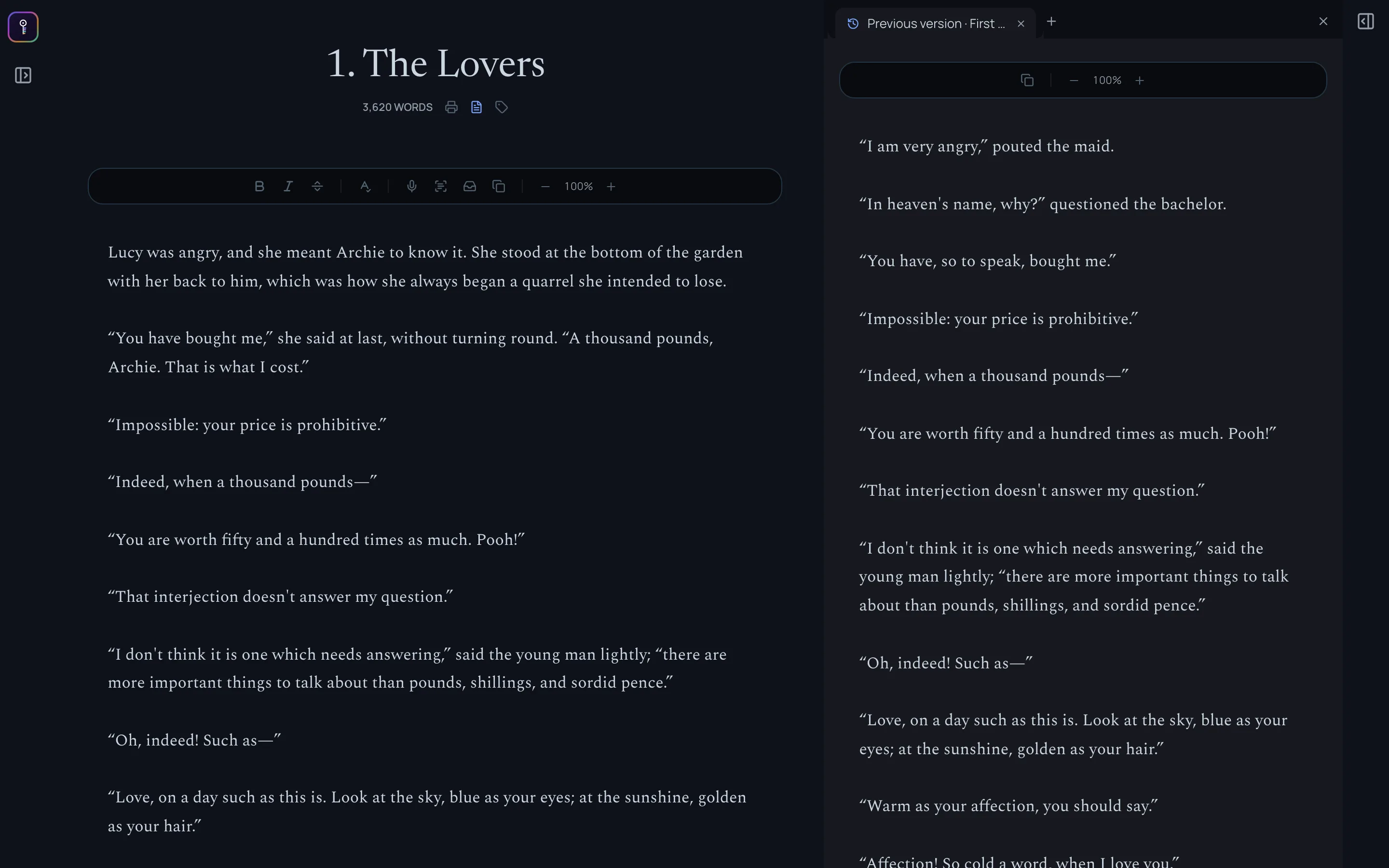
The split view
The split view puts something beside the chapter you’re writing, so you don’t have to leave the page to check a name, a beat or the old version of a scene. What you open there is read-only: it’s for looking at, and you change it in its own room.
Opening it
-
Open a chapter in Apparition.
-
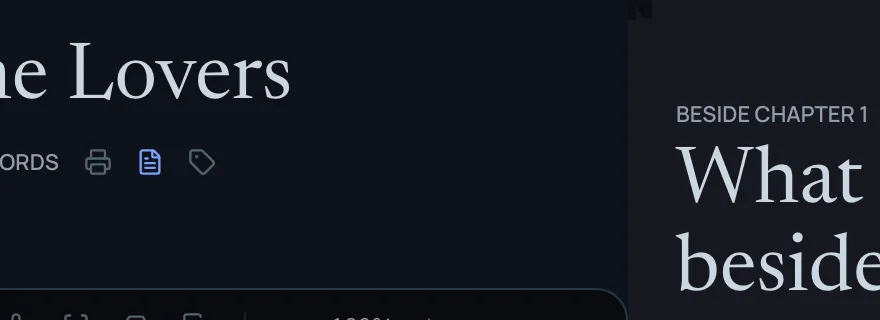
Click the split view button, beside the chapter’s word count.
-
A panel opens beside the chapter, asking what should sit there. It suggests a few things before you type, such as this chapter’s previous draft, the outline, your main character, your latest moodboard and your latest note.
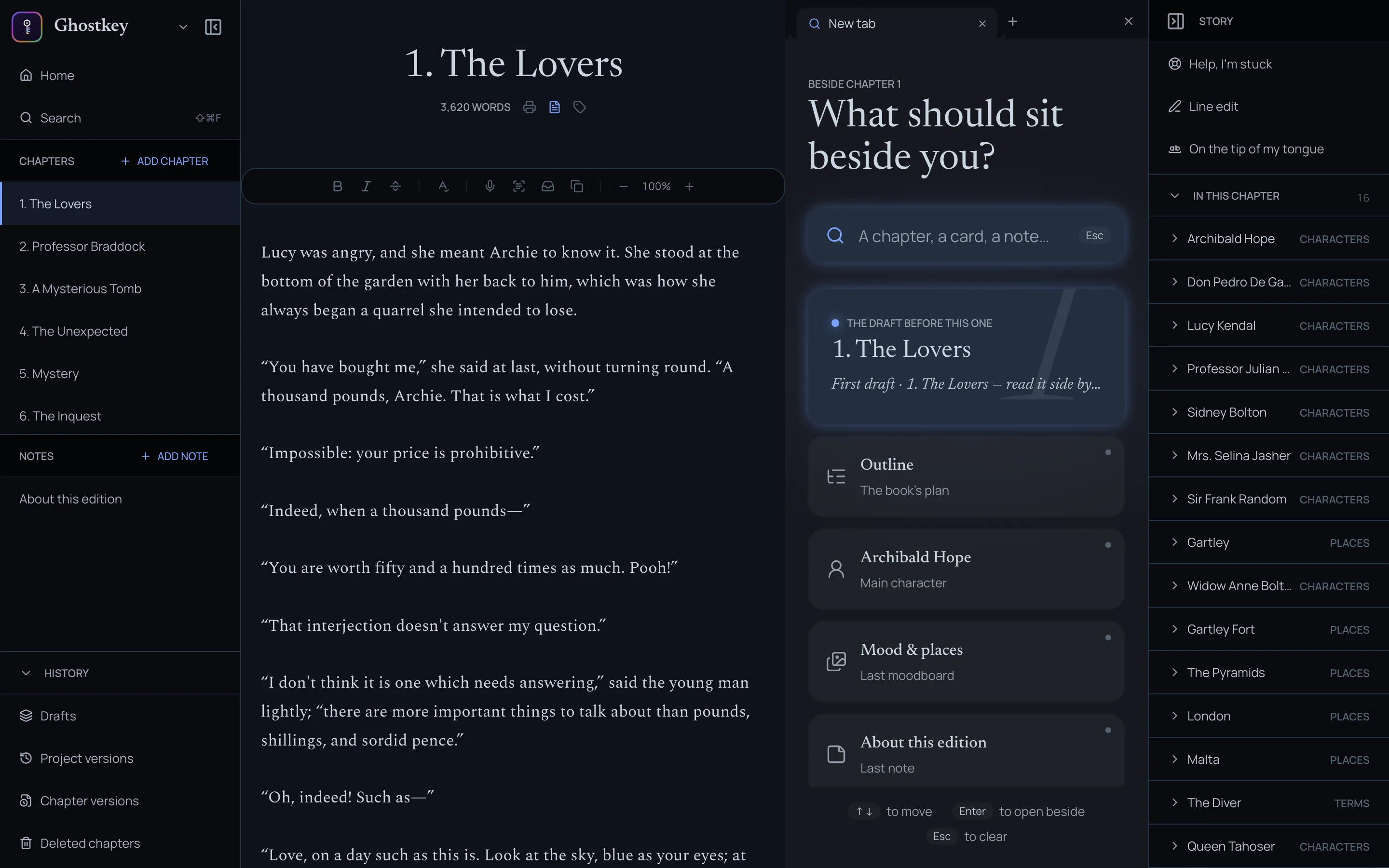
Finding what you want
Type in the search box to find anything by name: a chapter, a character, a place, a note, a moodboard. Use the arrow keys and Enter, or click a result, and it opens beside your chapter.
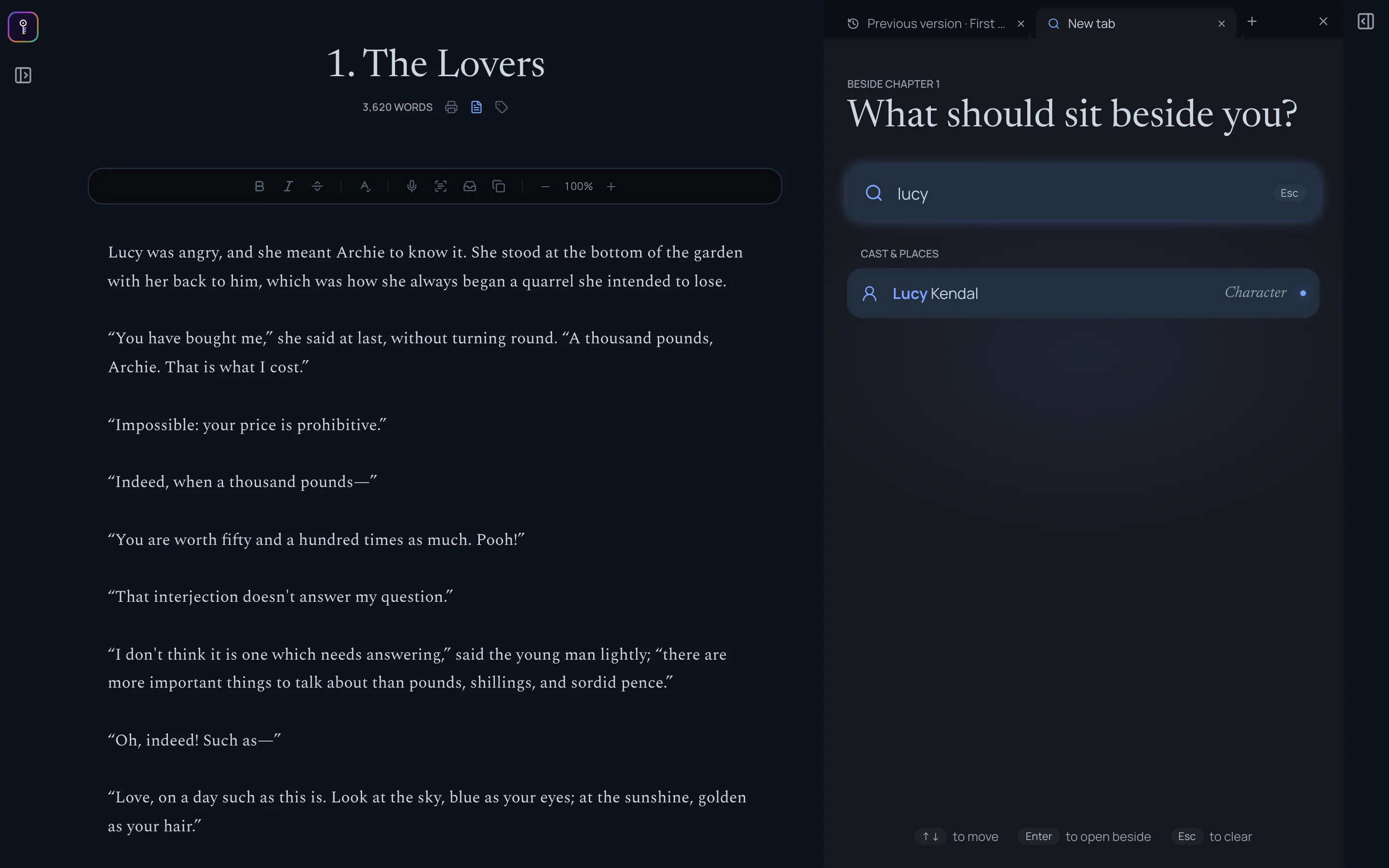
Each thing you open gets its own tab, like a browser’s. Click + to open another, click a tab to switch, and close the ones you’re done with. Click the split view button again, or the ✕ at the end of the tabs, to close the panel.
What to keep beside you
Anything you’d otherwise flip back and forth to. Some ideas:
-
The previous draft of a chapter, while you rewrite it. See Drafts.
-
Your outline, to keep track of what this chapter needs to do.
-
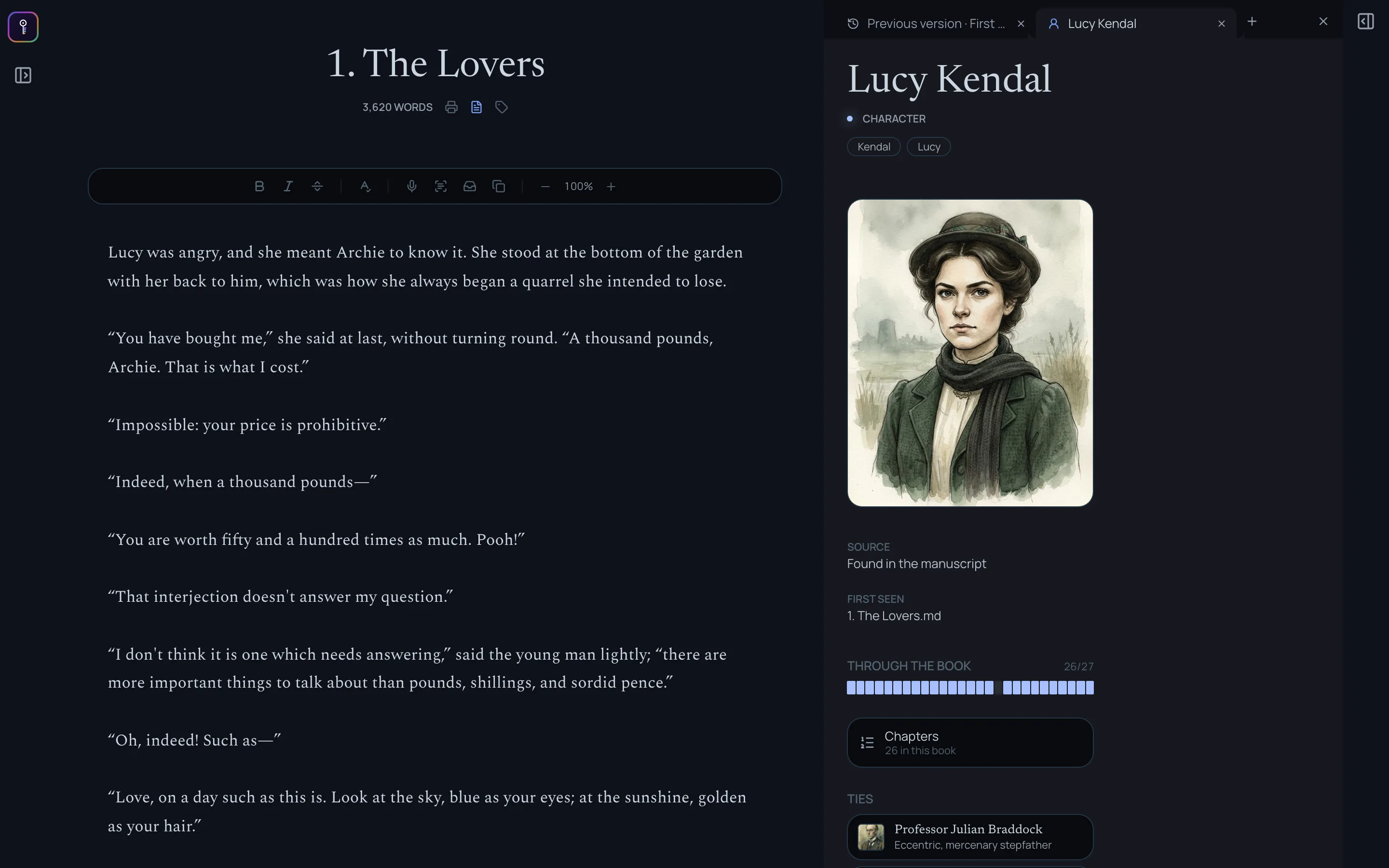
A character or place sheet, for the details you keep having to check: eye colour, who knows what, how the house is laid out.
-
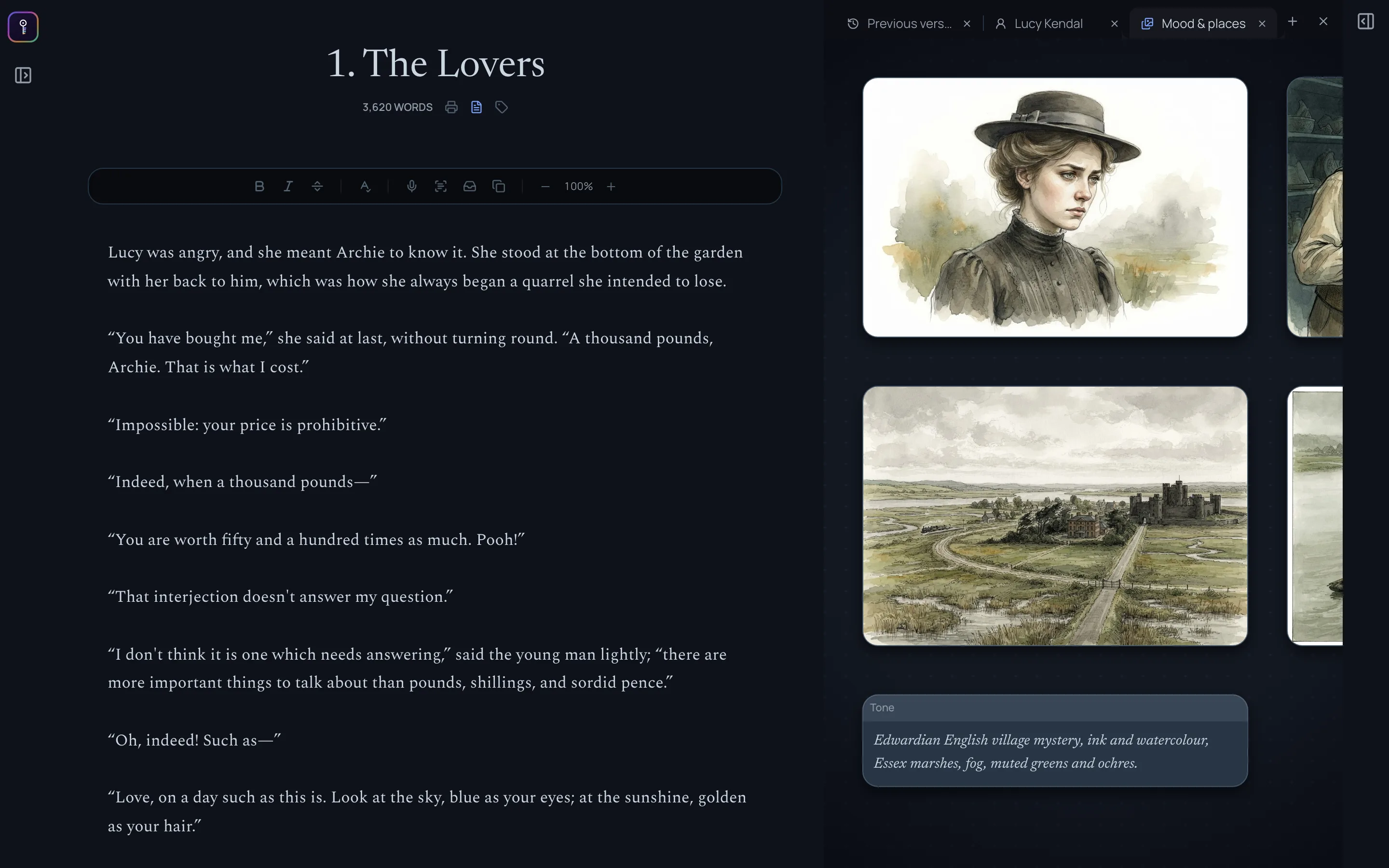
A moodboard of your research or references, for a setting you’re describing.
-
A note holding research, or feedback from a critique partner on this chapter.
-
Another chapter, of this draft or an earlier one, to check what was said or set up there.
-
A timeline, to keep the order of events straight.
Making more room
With the split view open, the page gets busy. To give the chapter and the split view more space, collapse the side panels: the icon at the top left hides the chapter list, and the icon at the top right hides the chapter panel. Click them again to bring the panels back.